Social media use is more prevalent than ever. The age at which children use these platforms continues to decrease. For parents, this is an alarming fact that requires swift action to ensure children are protected from online risks like cyberbullying, harmful or inappropriate content, and potential predators.
Built-in device features can help you control your child’s social media usage, but they are limited in their capabilities. For that reason, third-party apps like KidsGuard for WhatsApp are a better alternative. In this article, we’ll cover the use of all these solutions to help you settle on the best strategy for protecting your kids as they use social media.
(CG)
Why Social Media Monitoring Matters
Below are some compelling reasons why you should monitor your child’s social media apps.
- Protection from Online Predators: Younger social media users may interact with strangers online whose sole aim is to groom them. Such online predators prey on kids who cannot fully comprehend inappropriate conversations. Monitoring your child’s social media helps you stay vigilant of such people, allowing you to block and report them.
- Tracking Use to Prevent Screen Addiction: Without monitoring your child’s social media, it is not possible to estimate how much time they spend online on these apps. Therefore, it is essential to monitor their social media use to determine when to enforce healthy limits, prevent screen addiction, promote good sleep patterns, and help them focus on their studies.
- Identifying Signs of Cyberbullying: With trolls now a permanent presence on social media, monitoring your child’s account can help you determine when they are being bullied. That way, you can act quickly to cut contact with the bully, report them to their parents, and help avoid your child suffering from low self-esteem issues.
- Privacy Protection: When you fail to monitor your child’s social media, you may be unaware of their oversharing habits, which may expose your family’s address online or other sensitive information. A healthy monitoring routine and a trustworthy solution like FamiGuard for Snapchat help avoid this and guide your child on how to use social media without oversharing with strangers.
How to Control Your Child’s Social Media with Parental Tools
Built-In Parental Controls
Both Android and iOS have made strides in incorporating parental control features into their devices, allowing parents to manage their children’s social media usage.
For iOS Devices
If your child uses an iOS device, you can control their social media through one or all of the following features.
(Apple)
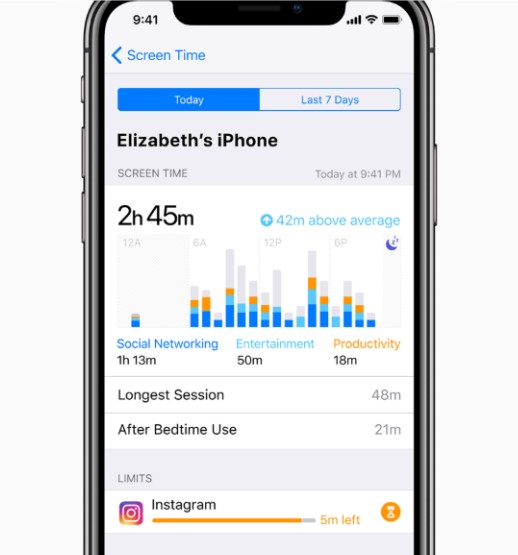
i) Screen Time Settings
These settings enable you to monitor and set healthy limits on the amount of time your child can spend on a specific social media app.
- On the child’s device, tap on Settings → Screen Time → Turn on Screen Time.
- Navigate to App & Website Activity → See All Activity → Choose Day or Week → Tap on the specific social media app to see usage estimates and specify limits.
ii) Downtime and App Limits
This feature enables you to restrict access to a specific app at a given time.
- While on the Screen Time window, tap Downtime → Specify the times when only essential calls and mobile apps are permitted.
- Click on App Limits → Add Limit → Choose the social media app you want to limit and set for how long.
iii) Content & Privacy Restrictions
Apple’s Content & Privacy Restrictions settings give you the option to limit the use of specific social media apps on your child’s device entirely. When enabled, your child will be unable to reinstall the specific social media app.
- Open the Settings app → Screen Time → Content & Privacy Restrictions → Enable and set a passcode.
- Tap Allowed Apps → Toggle off the social media apps you don’t want your child to use.
iv) Family Sharing
With Family Sharing, you can remotely monitor your child’s device and share other Apple services like iCloud, music, and more with up to six other family members. It also lets you approve or deny app downloads, track their location, and set up screen time management.
- Go to Settings on your iPhone → Tap on your name → Family Sharing.
- Tap “Set Up Your Family” and complete the setup process.
- Tap the Add Member option → Create your child’s account or invite their Apple ID.
- Follow the prompts to set up the parental controls you need, including limiting social media app downloads or access.
For Android Devices
You can control social media usage on Android devices through the following settings.
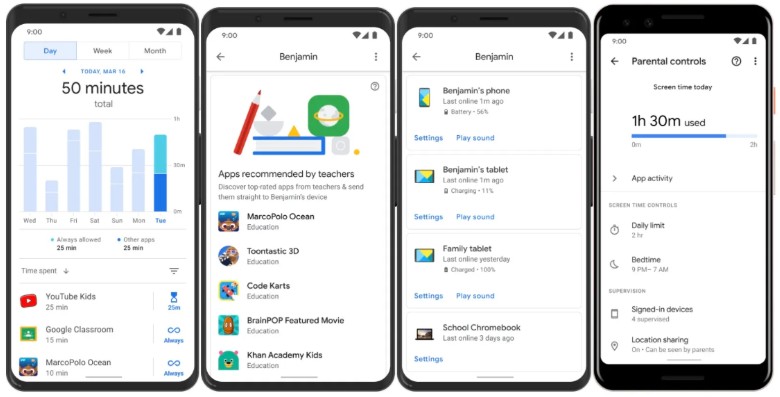
i) Digital Wellbeing
These settings allow you to set and control your child’s screen time.
- Open the Settings app → Digital wellbeing and parental controls → Create profile.
- Select target app → Tap on the hourglass → Set daily limit → OK.
- Alternatively, Bedtime or Sleep Mode → set start and end times → enable Do Not Disturb.
- Or, Focus Mode → Select social media app → Set schedule.
(Tech Crunch)
ii) Google Family Link
This is Google’s native parental control app.
- Download Google Family Link on your device and your child’s phone.
- Open the app → Parent → select your child’s Google account.
- Enter the generated code on your child’s device.
- On the child’s device, open the app → Grant supervision permission.
- Set up parental controls as needed, including limiting social media apps.
Third-Party Parental Control Apps
The built-in parental controls help limit access to apps but do not offer access to messages, friend lists, and shared media. For this, you need specialized third-party apps from ClevGuard and FamiGuard, such as the ones we discuss below.
KidsGuard for WhatsApp
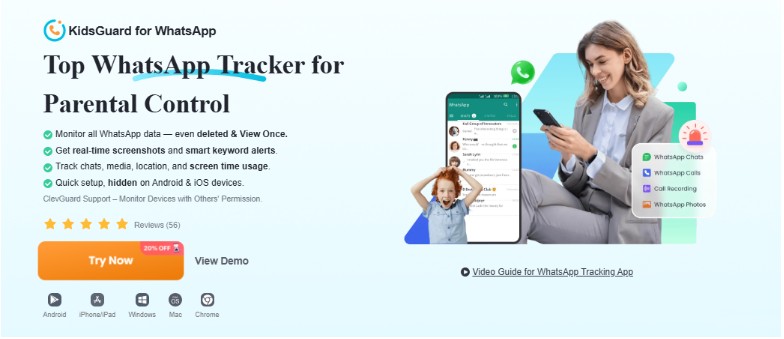
This dedicated WhatsApp monitoring app allows you to see all the messages your child sends and receives on WhatsApp. It helps you uncover the minute details of each chat, including the media shared, View Once photos, deleted messages and media, exchanged files, voice notes, and call logs. It also helps you know when your child is online and the contacts they have saved or interact with on the platform.
KidsGuard for LINE
(CG)
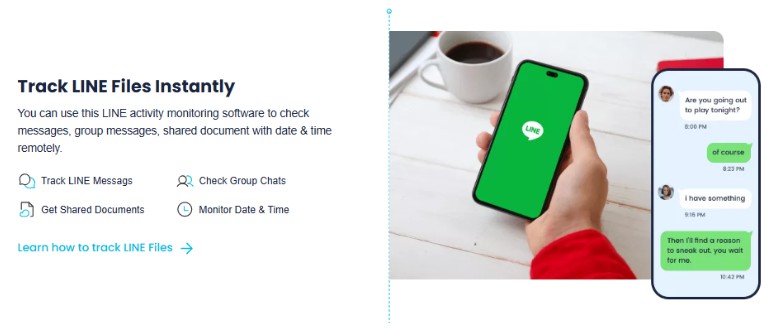
KidsGuard for LINE, as the name suggests, covers all aspects of social media activity on the LINE app. From chats to calls to media and files, you’ll be able to see what your child is up to in both group and individual conversations. KidsGuard for LINE also lets you track screen usage and set healthy time limits. You can also export usage reports to help you when discussing your child’s social media usage with them.
FamiGuard for Snapchat
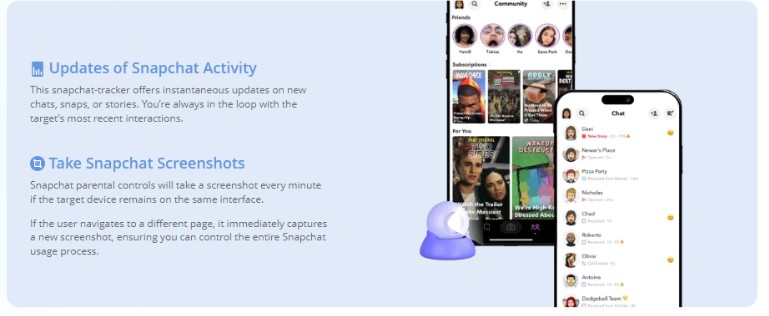
With FamiGuard for Snapchat, you no longer have to guess who your child is talking to or adding to their account. Simply link their device to the app and gain frontview access to all chats and messages, including deleted ones. The app also automatically takes screenshots of app activity every 60 seconds, ensuring you never miss a beat and can track all conversations.
(FG)
How to Set Up Third-Party Parental Control Apps
FamiGuard and ClevGuard apps are easy to configure, helping you take control of your child’s social media usage. Please follow the procedure below to get started.
- Visit the official ClevGuard or FamiGuard website.
- Select the app you want and proceed to pay for a subscription plan.
- Download and install the app on your child’s device.
- Log in to your online account and start monitoring remotely.
In Conclusion
Taking control of your child’s social media usage is crucial in today’s world to protect them from online risks and screen addiction. However, built-in device settings can be limiting in their scope due to privacy restrictions.
We recommend using third-party apps like KidsGuard for WhatsApp to help you gain more than just screen usage reports, as they also extend to messages and exchanged media for better monitoring and control.